Showing posts with label Console fixes. Show all posts

Monday, December 10, 2012

How to stream movies with subtitles on Xbox 360

PS3 Media Server


After wasting a lot of time re encoding movies to hardcode the subtitles i finally found a simple solution to stream movies or videos to Xbox 360 console with subtitles(SRT Subtitle files)I tried an application named Tversity earlier which i found quite complicated though it did its job of streaming movies very well loading subtitle through it was very complicated so i gave up.After a bit of researching online i found a simpler,easy and a free solution.PS3 Media server for me has been one of the most efficient applications to play almost all movies in all formats with subtitles on the tv through the Xbox 360.All you need to do is the following.

  • Settings up PS3 Media Server is simple.Go to PS3 Media Server Website and download the latest version of the software.
  • Once downloaded wait for the tick mark as shown in the above screenshot.Don't worry if it shows unknown render that's quite normal.
  • Switch on your Xbox 360 and the screen will show as the following with a picture of the console you are trying to stream the movie or a video.

PlayStation 3 Media Server Application

  • After the console appears  you need to go to the tab  Navigation Share Settings and click on add at the bottom of the screen to add the folder where your videos or movies are as shown in the screenshot below.
 
Sony Playstaion 3 Media Server
 
  • Make sure that the .SRT(Subtitle files)are located on the same folder as the video or movie with the same name as the movie or the video.For example if your movie name is ABCD.AVI make sure the subtitle is named as ABCD.SRT.
     
  • Once you are done click save on top of the screen and then go to your Xbox Dashboard--> Applications -->System Video Player-->Ps3 Media Server(Computer Name) and play the movie and it will play with the subtitles.
I never knew the PS3 media server will work on Xbox as well but to my amazement it works flawlessly with no problems whatsoever.The only Problem is at times while watching a few movies it does not forward or rewind but apart from that this works wonders and the best part of it is its free.

Saturday, October 13, 2012

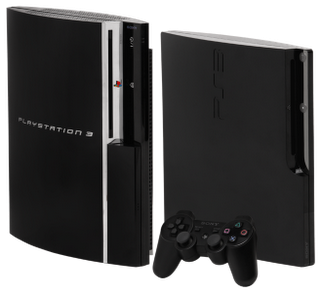
PS3 yellow light of death fix

Sony Playstation 3 Black


As the Xbox has the red ring of death the Sony PS3 also comes with a somewhat similar flaw known as yellow light of death. The normal tendency among gamers is to change their console once they see the yellow light flashing on their PS3. There is no need for this as there is a way you can fix the problem on your own without getting it repaired and paying money for it.I will share with you a few tips which in most cases should fix the issue first hand without you needing to have any expertise.

To be honest we do not know why the yellow light of death in PS3 occurs it can occur for a number of reasons such as a hardware failure, overheating,dust accumulation, or sometimes even when the cables are not plugged in properly.Check out a few steps below which you can try to fix your PS3 Yourself.

Step 1:If this problem occured while you were using your PlayStation 3 move your PlayStation 3  to a well ventilated area and then wait for around 30 minutes and try it again.Sometimes something as simple as this can resolve a complicated issue such as the yellow ring of death.If that does not work you can then try the following.

Step 2: If things didnt go well after the first step once your console has cooled down remove the power connector from the console as well as the wall and use the air can to blow the dust or any other accumulation from the connector.Once done ensure your tightly secure the connector to the PlayStation as well as the wall so you don't have any loose connections.Lastly,you can try the below as a last step if all else fails.

Step 3: If none of the above works the problem might actually be with the dust accumulation within the PS3 internally.Use some kind of a vaccum cleaner to pull out the pieces of dust that have failed to be released by the PS3 Fan.In most cases PS3 releases all the dust accumulated inside it through its internal fans sometimes there are bits of it which stay inside which might be causing the issue.If this step also does dont work the issue is more than likely internal(Hardware) and will require disassembling the unit. I would advise you to send this to sony for repairing it at this point as disassembling the unit yourself will end up with your warranty getting void and also sometimes you might end up making things worse.In most cases 8 out of 10 times the above fixes should resolve the issue for you without you having go deeper.Hope you get get back to gaming soon :)

Sunday, September 16, 2012

How to watch videos from your computer on Xbox 360

Today im going to tell you how you can stream movies/videos/pictures/music from your computer directly on your TV through your XBOX.Following are a few methods of doing this.


  1. Windows Media Center
  2. Video Player through the Xbox Dashboard
  3. Picture Viewer through the xbox dashboard
  4. Music Player through the xbox dashboard


Windows Media Center

Windows Media Center
To setup Windows Media Center on your xbox to stream Movies,Videos,pictures and music is easy.All you need to do is first make sure you clear the previous connections you might have.To do this first on you computer,Start Windows Media--->Center--->Tasks--->Settings--->Extender--->Xbox 360 Media Center Extender--->Uninstall. and then click  Next and this will remove the xbox 360 console extender from your media center.
Now On your xbox console press the Menu Button--> Settings---> System Settings---> Computers--->Windows Media Center--->Disconnect--->Press the B button on your controller to return to the Xbox Dashboard.

Once you are done removing the existing connections stated above you will need a setup key to configure the windows media center On your console, go to Apps,--->My Apps--->Windows Media Center--->Continue--> Make a Note of this 8-digit setup key you will need this in a while.
     
    Please Note: If your not seeing Apps? You might need to Update your Xbox 360 console software  
Once you have made a note of the setup key on your computer .Start Windows Media Cente--->Tasks--->Add Extender--->You will now be asked to  enter the 8-digit setup key you made a note of earlier and then click Next to complete setup. 
This has configured your computer with your xbox for streaming,i will now tell you how to add the folders of  music/videos/movies you would like to stream on your xbox  
On your xbox console go to Apps--->My Apps--->Windows Media Center--->Scroll down towards Tasks(Settings)--->Select Media Libraries--->At this step you can choose from a list of options such as music,pictures,videos,recorded tv,movies to choose from select an option to suit your needs and click next--->Now Select Add Folders to Library--->On this screen depending on wireless/wired line you can select an option where you can configured your xbox--->Select from the folders where you have the music/video/movie files and click finish it takes a few minutes but once configured you can go to the movie music,video library and your videos will be listed there to play.

Now comes the second option

Adding Videos through the default video player on Xbox

When you click on the menu button on the xbox and scroll towards the right hand side under media you have an option that says video player.This is a little simpler to configure than the windows media center so it should not take much time.You will not be able to view the videos here even if you share the video folder through the normal windows sharing method.To be able to do so you need to create a library through windows media player.On your windows media player select File-->Manage Libraries-->Videos and add the videos you would like to be listed and click ok.Once this process completes you will be able to stream movies/videos on your xbox through the default video player.You need to Follow the same process to view pictures and listen to music as well.


Wednesday, September 5, 2012

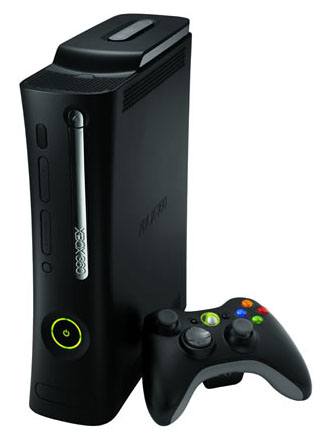
Xbox 360 red ring of death fix !!!

Xbox 360 Console Black Color

This is one of the common problems a person faces with their Xbox Consoles.If you are getting a red ring of death while you switch on your xbox you can try the fixes stated below


Why does the red ring appear on my xbox??

So to start off before we get into the  solution to any problem we have to find what caused it.The  red ring of death or RRoD  normal suggests a "general hardware failure", It is shown by 3 red lights or 3 red rings near the power button. It occurs, when GPU (graphics processing unit) becomes loose.As you might know that the  GPU is fitted on the  motherboard, when ever the motherboard heats up GPU becomes loose and green lights turn into 3 flashing red lights. The vibration of system usually loosens the soldering of the GPU  which results in your xbox freezing


Ok So now what??How do i fix this??

Wiath a good tip screwdriver turn the grayed out holes and in the back of the console turn the small rectangle holes. Get the faceplate off gently and move the latch up on the DVD cover as you remove it.Once done you have to  Unscrew the metal case which is under the plastic case.


Once this is done Unplug all cables connected to motherboard and associated small devices and take DVD drive out. After the DVD, get the fan and motherboard out of the Xbox 360 case. Make sure you do this very carefully to avoid further problems within your xbox

Once done with that turn the motherboard to another side, using the screwdriver gently snoop off the X-clamp which you will see located  under heat sink.I will advice you to do this step very gently again!

After you are done with snooping off X-clamp you will need to  unscrew the heat sink to get to the CPU and GPU.Please be very careful here as this step can further damage your xbox

Ok,So we are close now..Next step for you to do will be  to clean the GPU (graphic processing unit) and CPU (central processing unit). If you do this correctly this will fix any problems you have with your xbox freezing.Make sure you do this gently and carefully and you will get good results.

Now comes the last step,You will need to apply some thermal compound,The advisable product of thermal compound to use would always be  arctic silver thermal compound so apply this very  gently over the GPU. You will get this arctic silver thermal compound in any computer hardware shop for $1-$2.or on Ebay...

Ok,Now the hard part is over..After you are done with it give this about half and hour to settle down and place  2 nylon washers on each screw on the heat sink. Once that is done place the screws back in motherboard then add two more nylon washers to screws.Next thing to do will be to Place the heat sink on the peak of the screws and push them down slightly.One done  screw them up by trying to make it reasonably tight make sure its not very tight

Make sure  that everything is fitted right and turn on your xbox 360.If done right this will fix your issue


Please note:Incase if you are not sure about anything please get this fixed through an xbox authorised store or someone who can really help and always please be careful of electrocution and use something as a protection against electrocution

hope this helps!


Wednesday, August 8, 2012

Fix for Youtube app not loading on XBOX 360 !!!!

YouTube White Logo
From the past three days i have been really tearing my hear out trying to get the YouTube application working on my XBOX 360.unfortunately i do not have a permanent fix for this but you can try one of the below as a workaround one of the following should definitely work
  • Go to your YouTube account login click on settings on the top right side of your YouTube userid--->Select MY Channel---->click on channel settings on the left hand side and rename your channel,Description and the tag and try to load the YouTube application once again.

  • If the above does not seem to work go to your Xbox dashboard and try changing your gamer picture and your personal picture and try again.This is a silly fix but has shown great results to many!!! 
  • If the above does not work either..Change your gamer,Personal picture once again from your Xbox dashboard select party--->Start a party try once again.
As i said one of the above must definitely work for you guys all the fixes here sound silly but try it and if you still face problems let me know what happens exactly and ill try my best to help you out.